Updated:31 October 2026
Rank 1-14 of the best Wacom Graphics Tablets
Our recommendation Price Customer rating
1. Comparison winner
Wacom MovinkPad Pro 14 Standalone Drawing Tablet with Pro Pen 3
Available immediately
free shipping
  • 14-inch active drawing area on an OLED screen delivering true deep blacks, high contrast and a wide colour gamut (100% DCI-P3) with 3K resolution
  • Extremely high pen pressure sensitivity for precise control, with premium texture glass providing a paper-like feel and reducing parallax between the pen tip and the drawing surface
  • Runs Android 15 and works as a standalone device without a PC, enabling mobile creative work anywhere
Our rating
9,8
very good
2. Best value
Wacom Cintiq 16 (2025) 2.5K Pen Display with Pro Pen 3
Available immediately
free shipping
  • Active display area: 16 inch screen with 2.5K resolution (2560x1600) delivering sharper detail, brighter image and more accurate colours
  • Pen pressure sensitivity: responsive input with natural line variation and reduced parallax thanks to anti-glare etched glass
  • Compatibility: works with Windows, macOS and Android, and connects via a single USB-C cable for video signal and power delivery
Our rating
9,6
very good
Wacom Cintiq Pro 24 K100986 23.6-Inch 4K Pen Display
Coming soon
free shipping
  • 23.6 inch active area for drawing directly on the screen
  • 8,192 pressure levels and 60 degrees tilt recognition for precise pen input
  • Compatible with Mac OS X 10.11 and Windows 7 or later
Our rating
9,6
very good
Wacom MovinkPad 11 Standalone Drawing Tablet
Available immediately
free shipping
  • provides pressure sensitivity and tilt detection so lines vary with pen pressure and pen angle
  • compatibility with popular digital pens including Wacom Pro Pen 3, Kaweco, LAMY and STAEDTLER
  • the included Wacom Pro Pen 3 is battery-free and does not require charging, and the tablet can be used without a computer for portable drawing
Our rating
9,6
very good
50+ purchases last month
5. Bestseller
Wacom Cintiq 16 Full HD Pen Display
Available immediately
free shipping
  • active area: draw directly on a 15.6 inch full HD screen with anti-glare and scratch-resistant surface
  • pen sensitivity: 8,192 levels of pressure and 60 degree tilt recognition for a natural drawing experience
  • compatibility: works with Mac OS X 10.12, Windows 7 or later versions, and all Adobe or MS Office programmes
Our rating
9,5
very good
Wacom Cintiq Pro 27 4K Multi-Touch Pen Display
Available immediately
free shipping
  • Active area: 27-inch display provides a large work surface
  • Pen sensitivity and responsiveness: near-zero pen latency is supported with a 120 Hz refresh rate and 10 ms response time
  • Compatibility: requires a stand or mount that is compatible with VESA 100, and a bundled Ergo Stand option is available
Our rating
9,5
very good
Wacom Intuos Pro Medium Pen Tablet
Available immediately
free shipping
  • 263 mm by 148 mm active drawing area
  • 8192 levels of pen pressure sensitivity to produce varying line thickness
  • works with Windows and macOS operating systems
Our rating
9,4
good
100+ purchases last month
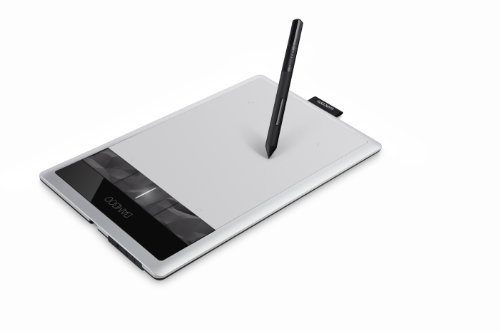
Wacom Bamboo Pen Tablet CTH470
Available immediately
free shipping
  • compact active area for portable use
  • pressure sensitive pen for precise drawing and editing
  • includes software such as Photoshop Elements, Autodesk SketchBook Express and Nik Color Filters
Our rating
9,3
good
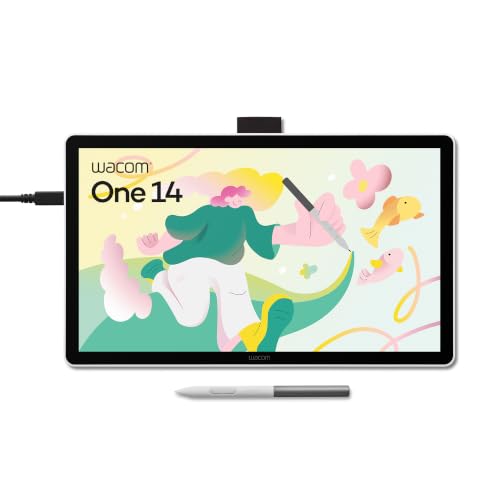
Wacom One 14 Full HD Pen Display
Available immediately
free shipping
  • 14-inch active drawing area on a Full HD display for a larger creative workspace
  • 4096 pressure levels with 160° tilt for precise input and shading with lag-free tracking
  • USB-C connectivity for quick plug-and-play use with Windows, macOS and ChromeOS
Our rating
9,1
good
Wacom Intuos S Pen Tablet with Pen 4K
Available immediately
free shipping
  • active area of 15.2 x 9.5 cm
  • pen with 4,096 pressure levels for maximum precision
  • compatible with Mac OS X 10.11, Windows 7, Android 6.0, and Chrome OS 87 or later
Our rating
9,0
good
Wacom Intuos S Pen Tablet with 4K Pen
Available immediately
free shipping
  • Active area: the active drawing surface measures 200 by 160 millimetres (7 inches) providing a comfortable working space
  • Pen pressure: 4096 levels of pressure sensitivity allow you to vary line weight and opacity for nuanced drawing
  • Compatibility: compatible with Windows and macOS via USB with drivers and software available to download
Our rating
8,9
good
200+ purchases last month
One by Wacom Medium Pen Tablet
Available immediately
free shipping
  • active area of 21.6 x 13.5 cm for various digital activities
  • 2,048 pen pressure levels for precise and natural drawing
  • compatible with Mac OS X 10.10, Windows 7 and Chrome OS 87 or later
Our rating
8,9
good
Wacom Intuos M Pen Tablet with Battery-Free Pen 4K
Available immediately
free shipping
  • active area of 21.6 x 13.5 cm for ample drawing space
  • battery-free pen with 4,096 pressure levels for precise and natural drawing
  • compatible with Mac OS X 10.11, Windows 7, Android 6.0 devices, and Chrome OS 87 or later versions
Our rating
8,8
good
200+ purchases last month
Wacom One Small Pen Tablet
Available immediately
free shipping
  • 4k pen pressure sensitivity with tilt recognition enabling a wide range of line thickness and shading with low latency
  • works with Windows, Mac, Chromebook and Android devices
  • plug-and-play via USB-C cable or Bluetooth, with macOS not supported for plug-and-play
Our rating
8,8
good

Similar Wacom Graphics Tablet comparisons

Wacom Graphics Tablets buying guide: How to choose the right product from the above Wacom Graphics Tablets test or comparison

Understanding Wacom Graphics Tablets: What Makes Them Unique

The Essence of Wacom Graphics Tablets

Wacom graphics tablets stand out in the crowded digital art market due to their unique technology, which combines a pressure-sensitive stylus with a responsive drawing surface. This allows for a natural drawing experience, mimicking traditional art methods with remarkable precision. Their tablets provide a seamless connection between your hand and the digital canvas, giving artists of all levels the ability to express their creativity with ease.

Diverse Range for Different Needs

Wacom offers a variety of models catering to different skill levels and purposes. From the entry-level Wacom Intuos that is ideal for hobbyists, to the professional-grade Wacom Cintiq with a built-in screen for artists who want to draw directly on the display, there’s a tablet for everyone. This diversity makes Wacom a trusted choice for both beginners and professional artists.

Choosing the Right Wacom Graphics Tablet: Key Features to Consider

Size Matters: What to Choose?

When selecting a Wacom tablet, consider the size that will suit your workspace and drawing habits. Larger tablets allow for greater detail and more room to move your hand, while smaller options are more portable and manageable for limited desk space. Think about how and where you will use your tablet to make the best choice.

Pressure Sensitivity and Resolution Explained

Another critical feature is pressure sensitivity, which determines how nuanced your strokes can be. Tablets with higher pressure sensitivity levels respond more precisely to varied pressure, allowing for detailed line work and subtle shading. Similarly, resolution plays a role in the clarity and detail of your work; higher resolution values will yield finer details in your artwork.

Connectivity Options: Wired vs. Wireless

Connectivity is essential for your workflow. Wacom tablets typically come with USB connections or wireless options. Wired connections often provide a stable, lag-free experience, while wireless options allow for greater freedom of movement. Consider your working style and environment when deciding on the best connectivity.

How to Get Started with Your Wacom Graphics Tablet: First Steps and Setup Tips

Unboxing and Initial Setup

As soon as you have your Wacom tablet, unpack it carefully, ensuring you have all necessary components like the stylus and any cables. Setting up a Wacom tablet is straightforward: connect the tablet to your computer and install the required drivers and software. Wacom provides user-friendly installation guides, helping you through the process smoothly.

Customising Your Workspace

Once set up, it’s time to customise your tablet’s settings to match your preferences. Adjust the express keys and touch ring features if available, allowing quick access to your most-used tools. This personalisation can significantly enhance your efficiency and comfort while working.

Software that Complements Your Wacom Tablet

To get the most out of your Wacom tablet, consider software that best suits your artistic needs. Programs like Adobe Photoshop and Corel Painter are industry standards that offer a wide array of brushes and tools. For illustrators and animators, Clip Studio Paint has powerful features tailored for these professions, making it a superb choice.

Exploring Techniques to Enhance Your Artwork

Apart from software, exploring various techniques can uplift your work. Begin with basic sketches, and gradually build up layers and detailing. Use the pressure sensitivity of your stylus to create varying line widths, which adds depth to your illustrations. Experiment with blending tools and brush settings within your chosen software to discover different styles that resonate with your artistic voice.

Maintenance and Care for Your Wacom Graphics Tablet: Tips for Longevity and Performance

Regular Cleaning Practices

Maintaining your Wacom tablet is vital for its longevity. Regularly clean the tablet surface with a soft, dry cloth to remove dust and fingerprints. Avoid using harsh chemicals, as they can damage the surface. Additionally, keep your stylus in good condition by storing it properly when not in use, ensuring the nib does not wear out prematurely.

Software Updates and Driver Maintenance

Be proactive in updating your tablet’s drivers and software. Regular updates can enhance performance, add new features, and improve compatibility with the latest software versions. Keeping your tablet’s firmware up to date will ensure it operates smoothly, making your creative process as seamless as possible.


Table of contents
  1. Understanding Wacom Graphics Tablets: What Makes Them Unique
  2. Choosing the Right Wacom Graphics Tablet: Key Features to Consider
  3. How to Get Started with Your Wacom Graphics Tablet: First Steps and Setup Tips
  4. Maximising Your Creativity: Popular Software and Techniques
  5. Maintenance and Care for Your Wacom Graphics Tablet: Tips for Longevity and Performance

Overview

1. Comparison winner
Wacom MovinkPad Pro 14 Standalone Drawing Tablet with Pro Pen 3
Our rating
9,8
very good
Wacom MovinkPad Pro 14 Standalone Drawing Tablet with Pro Pen 3Available immediately
2. Best value
Wacom Cintiq 16 (2025) 2.5K Pen Display with Pro Pen 3
Our rating
9,6
very good
Wacom Cintiq 16 (2025) 2.5K Pen Display with Pro Pen 3Available immediately
Wacom Cintiq Pro 24 K100986 23.6-Inch 4K Pen Display
Our rating
9,6
very good
Wacom Cintiq Pro 24 K100986 23.6-Inch 4K Pen DisplayComing soon
Wacom MovinkPad 11 Standalone Drawing Tablet
Our rating
9,6
very good
Wacom MovinkPad 11 Standalone Drawing TabletAvailable immediately
5. Bestseller
Wacom Cintiq 16 Full HD Pen Display
Our rating
9,5
very good
Wacom Cintiq 16 Full HD Pen DisplayAvailable immediately
Wacom Cintiq Pro 27 4K Multi-Touch Pen Display
Our rating
9,5
very good
Wacom Cintiq Pro 27 4K Multi-Touch Pen DisplayAvailable immediately
Wacom Intuos Pro Medium Pen Tablet
Our rating
9,4
good
Wacom Intuos Pro Medium Pen TabletAvailable immediately
Wacom Bamboo Pen Tablet CTH470
Our rating
9,3
good
Wacom Bamboo Pen Tablet CTH470Available immediately
Our product comparisons are:
Always up to date:
At most every 120 days, we update each category with new products and research developments in the top rankings. This ensures that our recommendations are always up to date
Neutral and independent:
Our tests and comparisons are objective and fact-based. Manufacturers have no influence on the ratings. We aim to provide greater transparency in the market, thereby promoting product quality.
Method-driven
In our tests & comparison tables, we only include products that meet our minimum standards. This ensures that you can find the perfect product for your needs from a wide selection.
Similar tests and comparisons - Technology Accessories